Introduction
Mail merge is the process of combining a document template with a data source to produce multiple personalized documents in one operation. It is commonly used for contracts, offer letters, invoices, certificates, and any other document where the overall structure stays the same but specific fields change per recipient or record. Microsoft Word has included mail merge as a built-in feature for decades, making it a familiar starting point for many teams already working in the Microsoft 365 ecosystem. Dedicated document generation platforms like DocuGenerate approach the same problem differently: cloud-based processing, a REST API, and a set of template features that extend well beyond what Word supports natively.
In this article, we evaluate both approaches using the same template and data file so the results are directly comparable. We walk through each workflow from start to finish, then examine how the two tools handle specific features including output formats, bulk generation, dynamic filenames, conditional content, images, and QR codes. The goal is not to pick a universal winner but to give you a clear picture of where each tool fits so you can choose the right one for your workflow.
The Sample Files
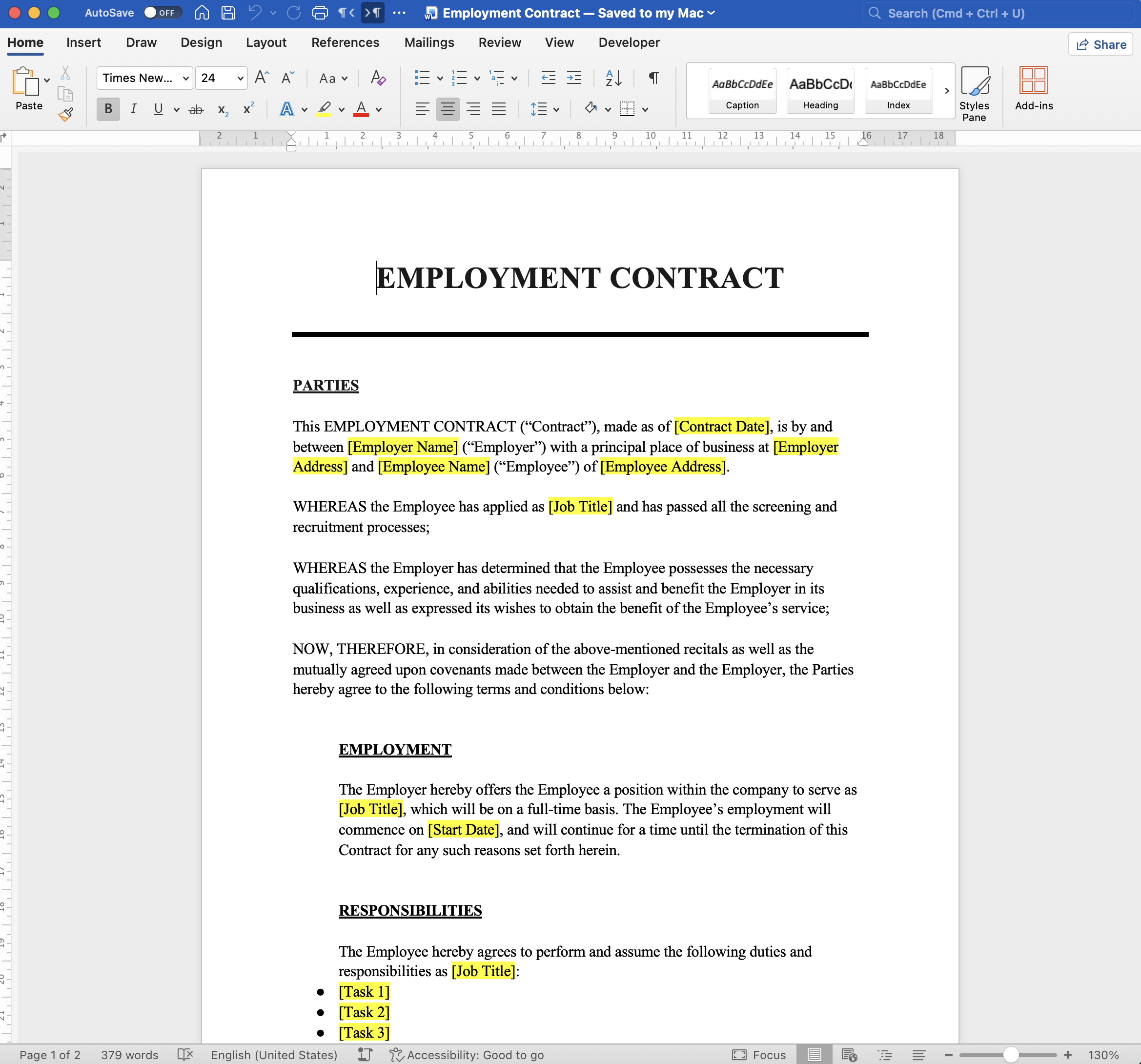
To keep the comparison grounded, both workflows in this article use the same two files. The template is the Employment Contract.docx Word document from our Template Library. It contains merge fields for employee details, contract dates, compensation, and other standard contract terms.
The data source is the matching Employment Contract.xlsx spreadsheet, where each row represents one employee and the column headers correspond exactly to the merge field names in the template.
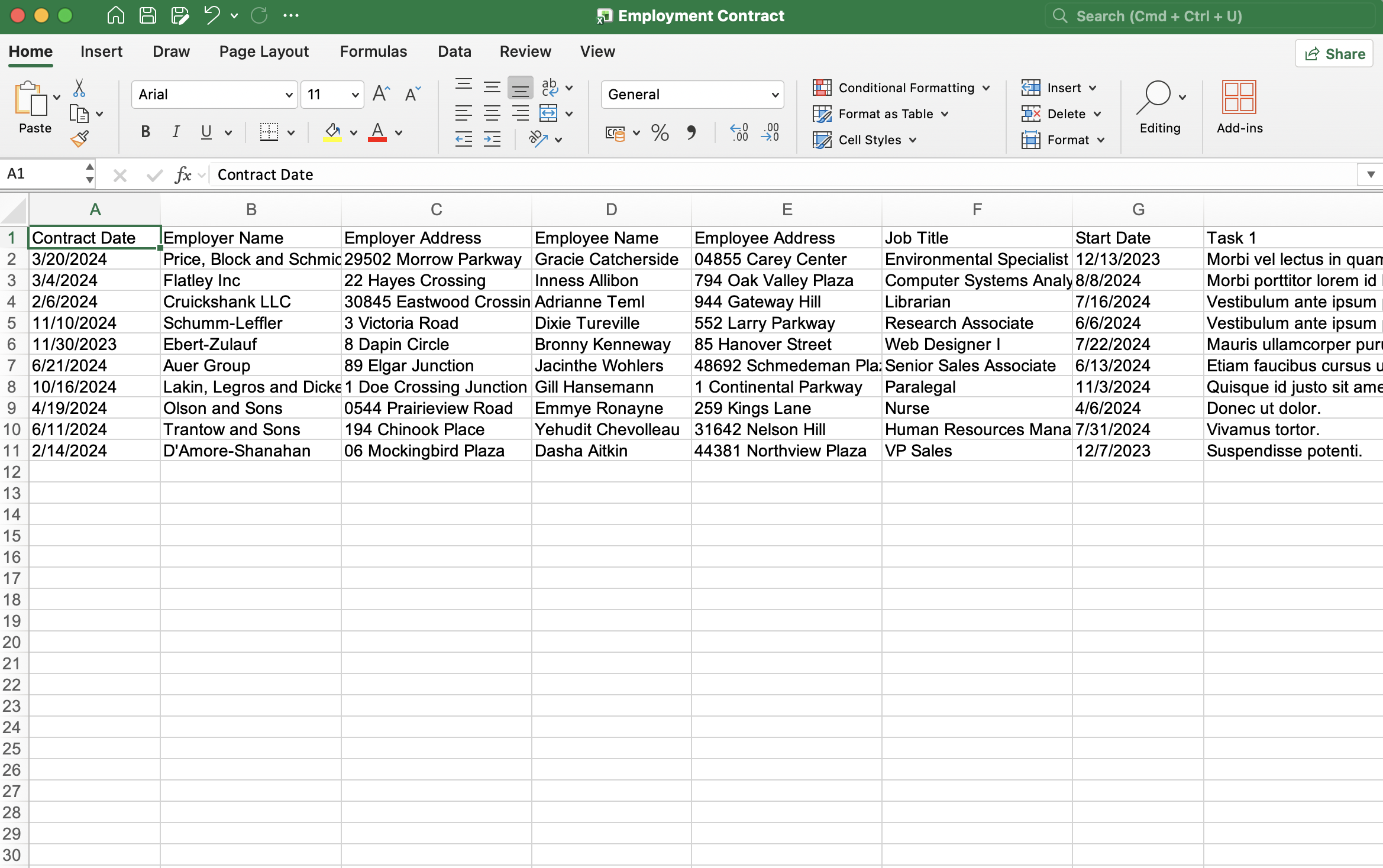
One thing to note is that the column names in the spreadsheet must match the merge tag names in the template exactly for either tool to work correctly. This is a requirement shared by both Word and DocuGenerate, and it applies regardless of which delimiter format is used.
Mail Merge in Microsoft Word
Word’s mail merge is accessible from the Mailings tab, which provides a structured workflow for connecting a template to a data source, inserting fields, previewing the output, and completing the merge. All of this happens locally within the Word application.
Connecting the Excel Data Source
To begin a mail merge, open the Employment Contract template in Word and navigate to Mailings > Select Recipients > Use an Existing List. Word will prompt you to select a file. After selecting Employment Contract.xlsx, a dialog appears asking you to choose which sheet to use as the data source, which is useful when your workbook contains multiple tabs.
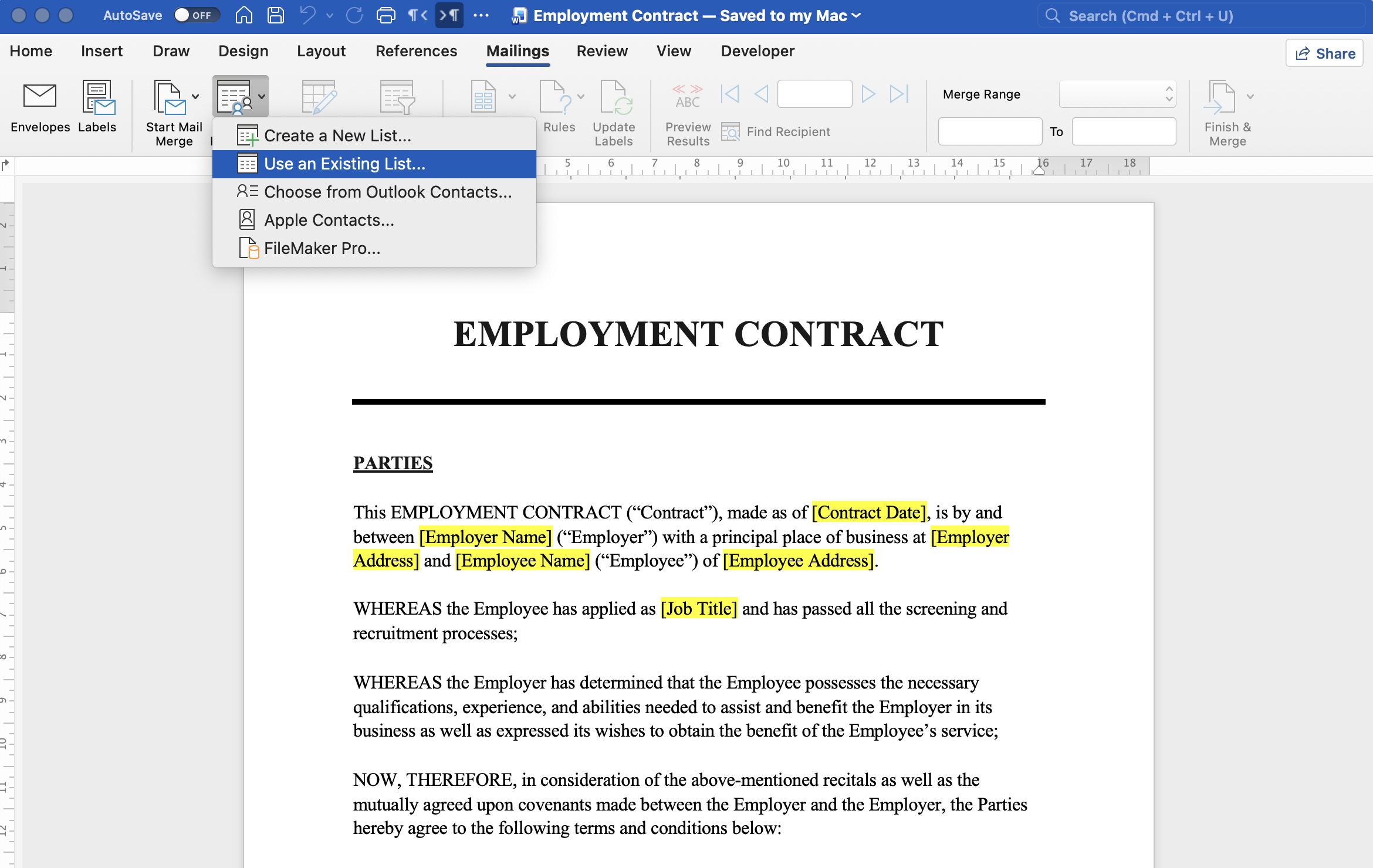
With the data source connected, Word reads the column headers and makes them available as merge fields throughout the session. You can also open Edit Recipient List to filter records, sort them, or exclude specific rows before running the merge.
One thing to be aware of: when saving the Word template after connecting it to an Excel file, it stores the path to that file inside the document. If the Excel file is later moved, renamed, or deleted, reopening the template will trigger an error saying “Word cannot find its data source”. It will then prompt you to locate the file again or remove the data source link entirely. This linking behavior means the template and data file need to stay in sync, which can become a maintenance concern when sharing templates across a team.
Inserting the Merge Fields
Once the data source is connected, you can place merge fields anywhere in the template using Mailings > Insert Merge Field. Word wraps each field in its fixed «Field_Name» delimiter format, using guillemet characters that are inserted through the interface rather than typed directly. This delimiter format is not configurable: all Word mail merge fields use «» and cannot be changed to another character pair.
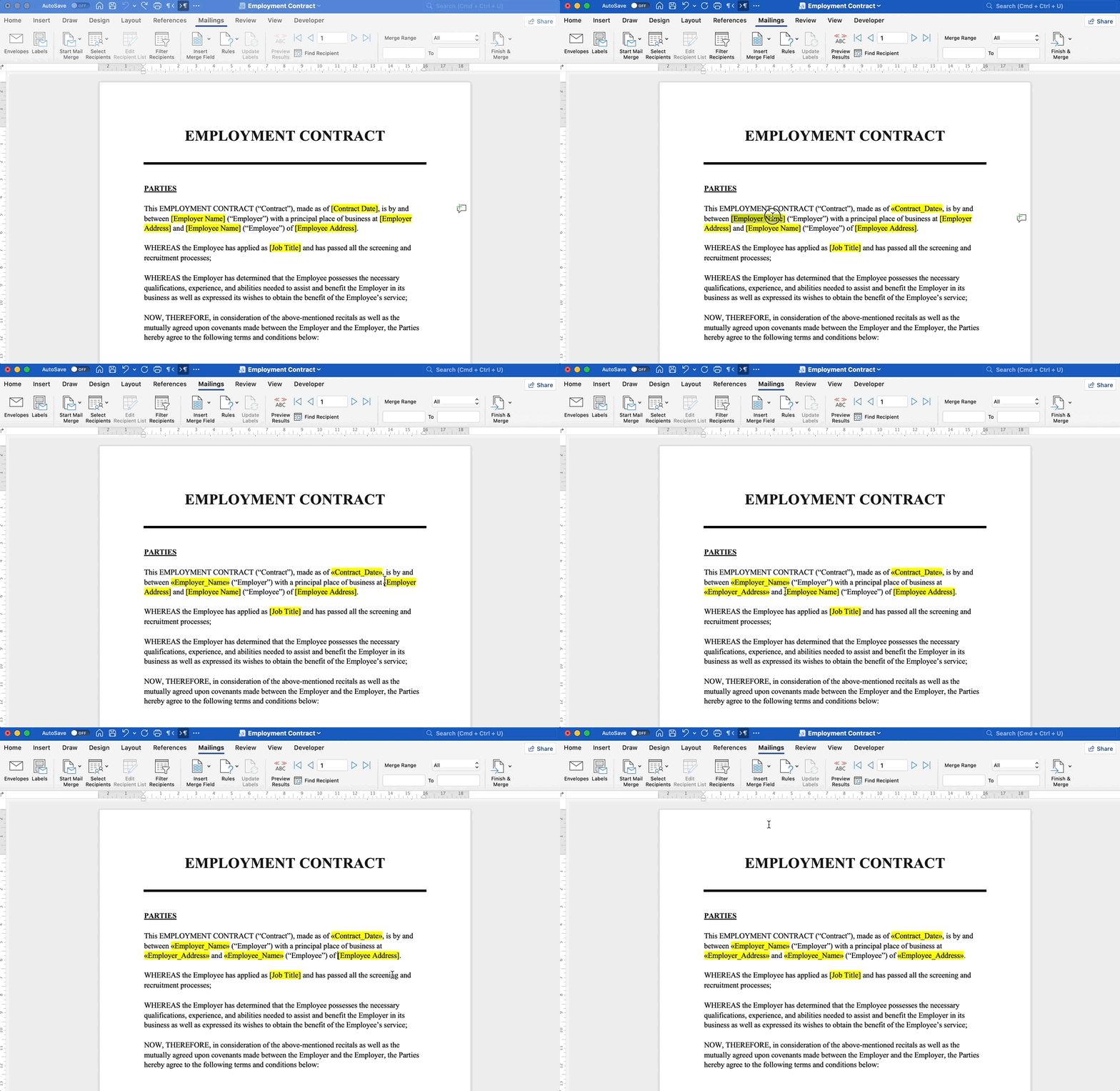
Note that Word replaces the spaces in the column names with underscores when creating the field names for the merge. So the column named Contract Date in the spreadsheet becomes «Contract_Date» in the merge field list. This works fine in Word, but it’s useful to keep that in mind if you want to use the same template in DocuGenerate, for example, because the column names in Excel will no longer match the merge tags exactly.
Previewing the Results
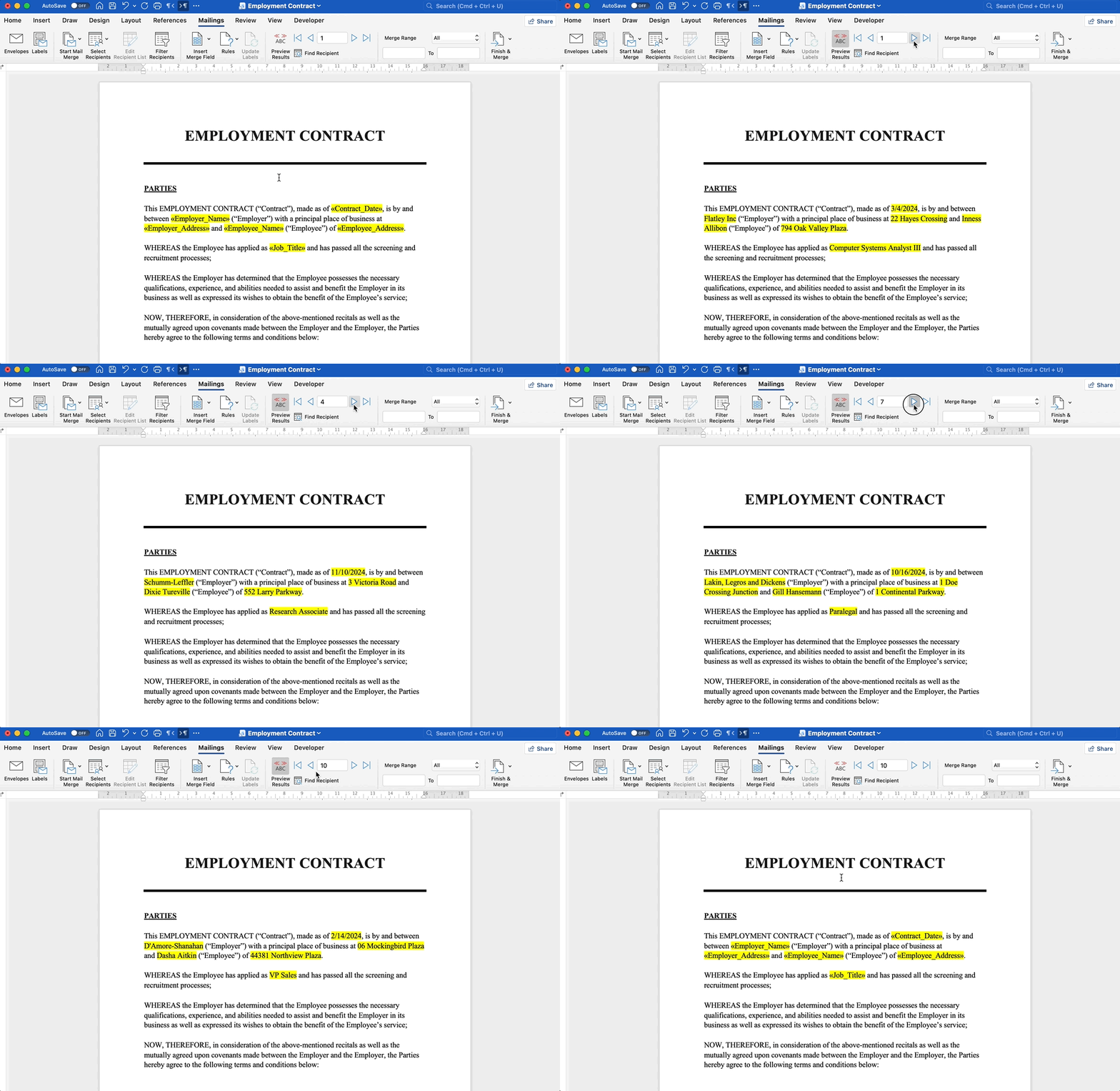
The Preview Results button on the Mailings tab replaces each merge field with the corresponding value from the first row of data. Navigation arrows let you step through the remaining records to spot-check the output before committing to the full merge. This instant preview is one of Word’s most useful features for template development.
Completing the Merge
With the template verified, Finish & Merge offers three options: edit the merged documents in a new Word file, send directly to a printer, or send as individual email messages via Outlook. Selecting Edit Individual Documents produces a single Word file where each merged record is separated by a page break.
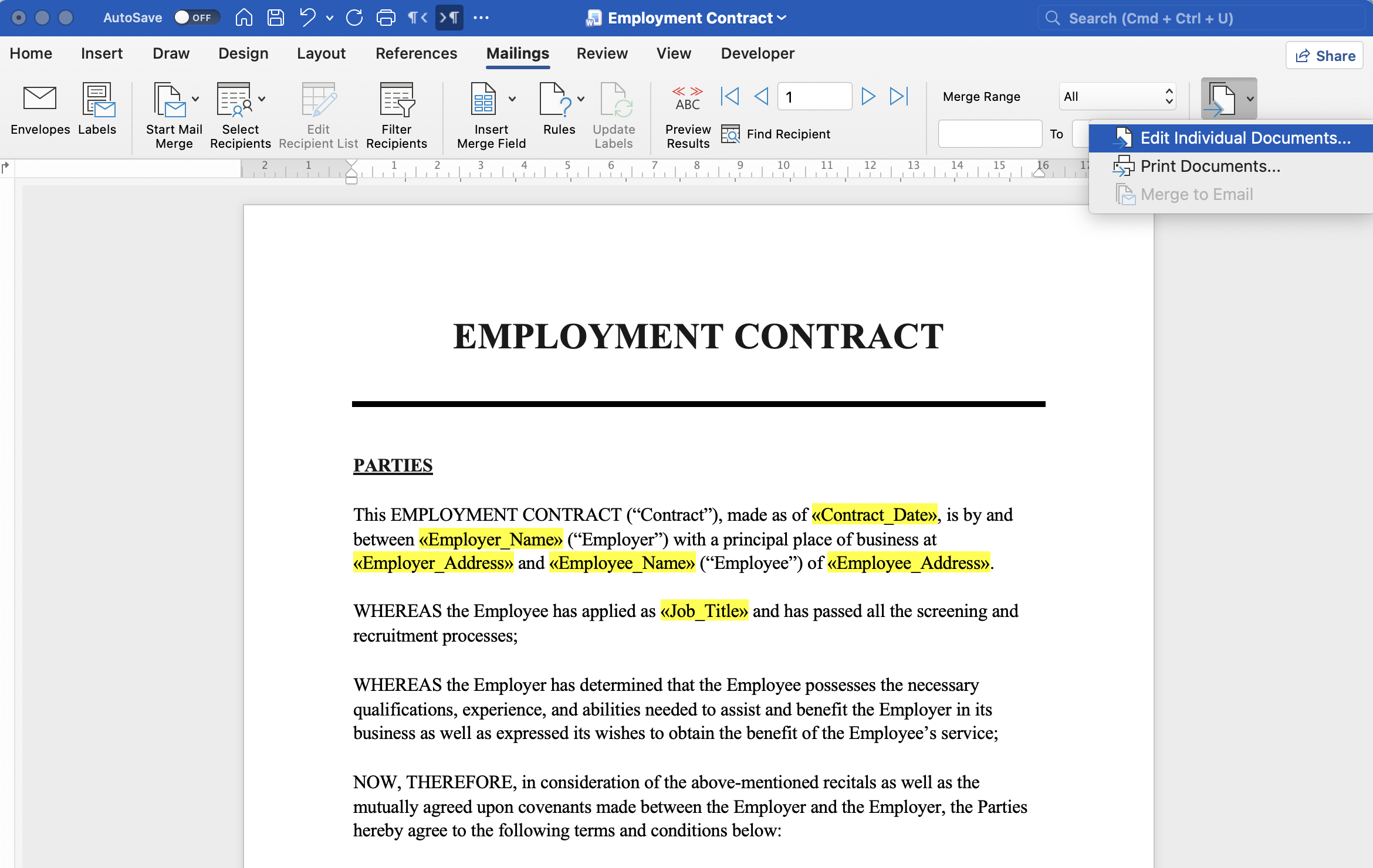
You can download a copy of the merged document to see what the output looks like. To get a PDF, you need to save or export that file manually after it was generated.
Word does not generate individual files per record as part of the merge process. The entire workflow is desktop-only: there is no API, no cloud processing, and no way to trigger a mail merge programmatically from another application.
Mail Merge in DocuGenerate
DocuGenerate is a cloud-based document generation platform that works from a web app and a REST API. The template remains a standard DOCX file, so you can design and edit it in Word as usual. The generation step happens in the cloud and produces the final document without requiring any local software beyond a browser or an HTTP client.
Setting Up the Template
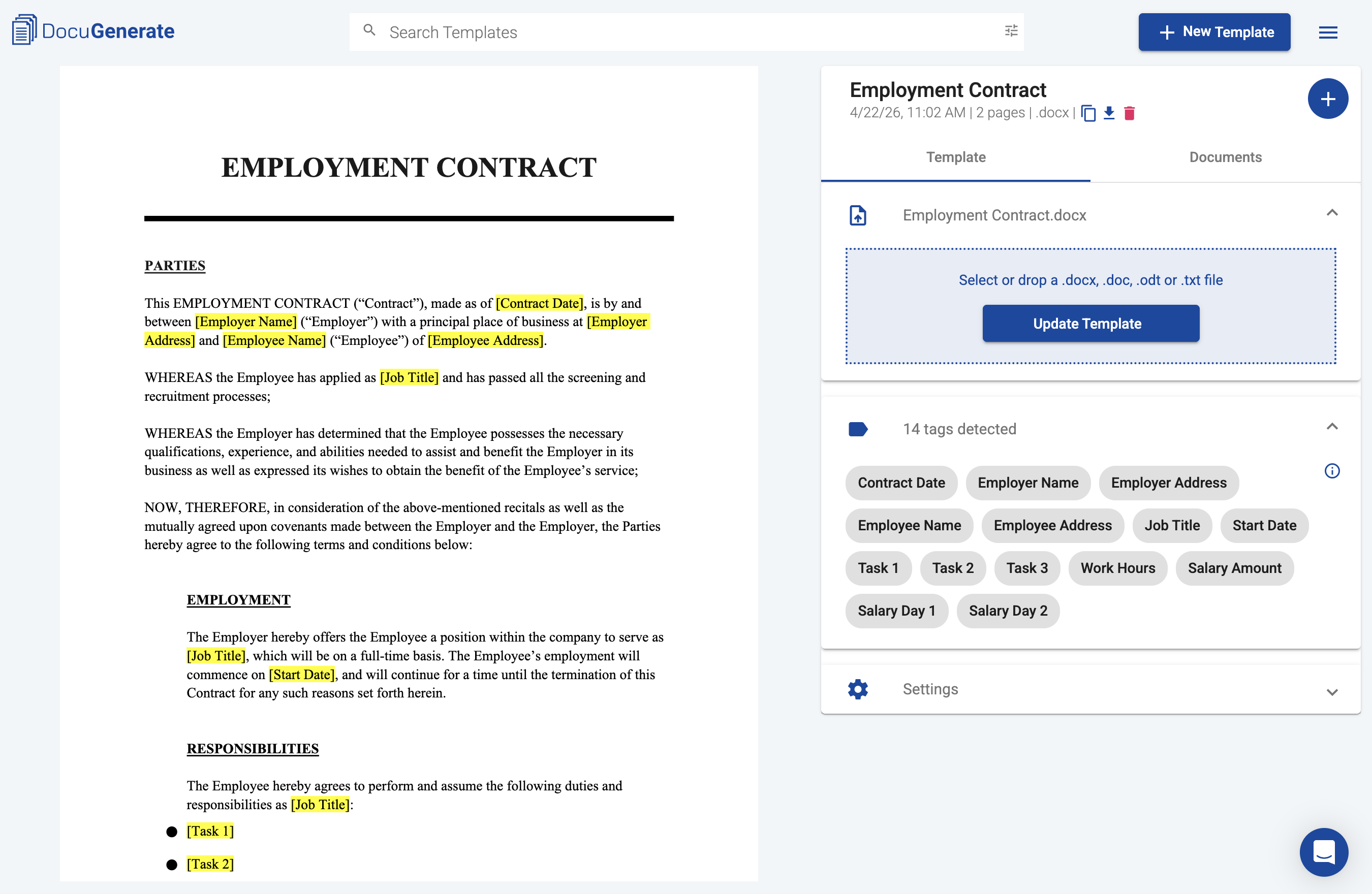
To get started, upload the Employment Contract template from the New Template page in the web app. DocuGenerate reads the merge tags from the document and uses them as the fields to populate at generation time.
The merge tags can use square brackets [] as delimiters, but it’s also possible to customize the delimiters to any character pair you prefer, including the Word-style «» guillemets if you want to reuse an existing Word mail merge template without modifying it.
Generating from Excel
To generate documents from Excel, click New Document on the template, choose the Excel or CSV file option, and upload Employment Contract.xlsx. DocuGenerate detects the sheets in the workbook and lets you choose which one to use. As with Word, the column names in the spreadsheet must match the merge tag names in the template exactly for the generation to succeed.
From the Data Items section, you can select which records to use for the merge by clicking on them. By default, all the records in the spreadsheet are used for generating the documents.
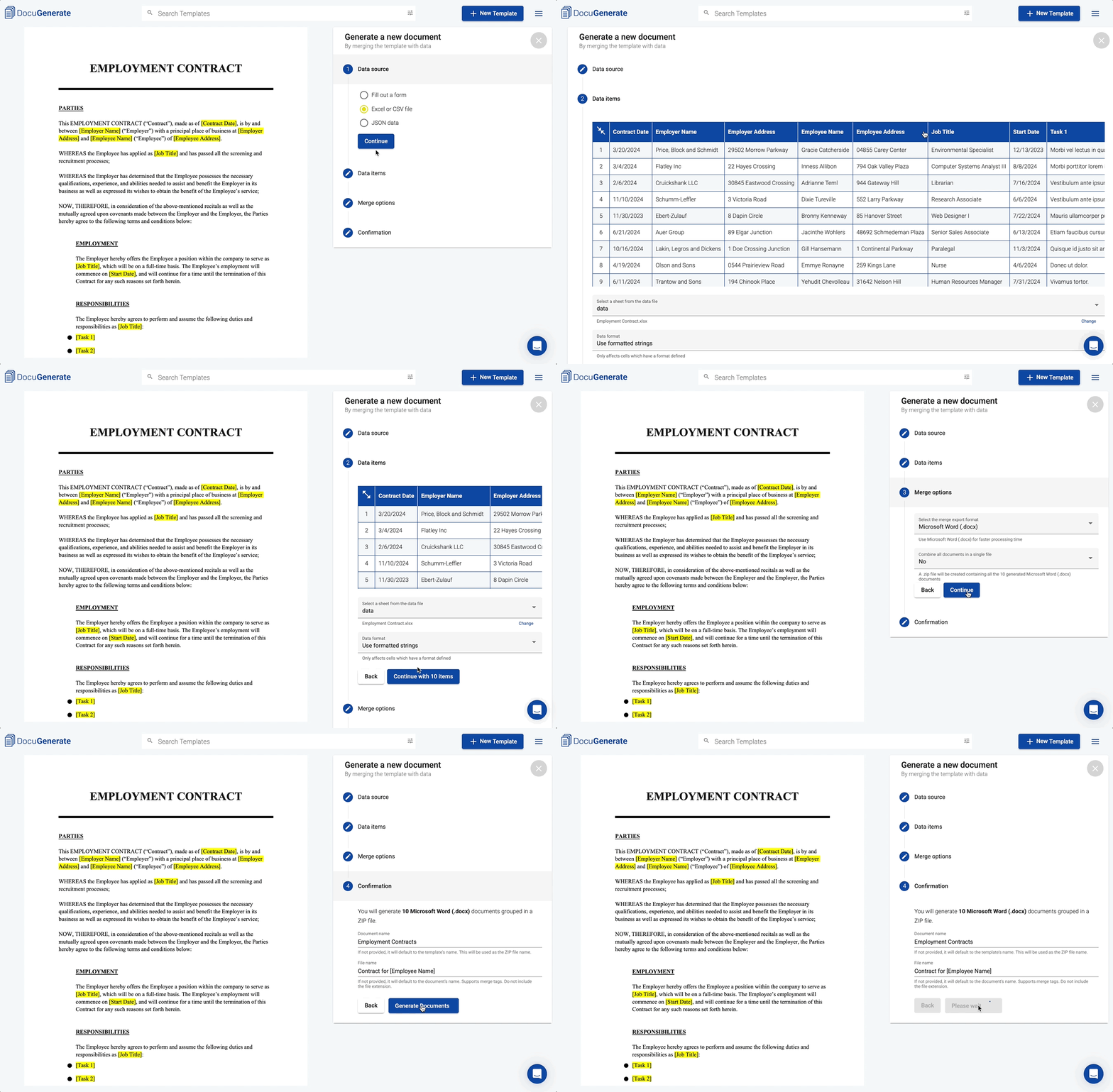
The merge export format can be a Word document, matching Word’s native output, or a PDF generated directly in the cloud. For multiple records, you can either combine all documents into a single file (see Employment Contracts.docx for an example) or download them as separate files grouped in a ZIP archive (see Employment Contracts.zip).
Generating via the API
DocuGenerate also exposes an API that lets you trigger document generation from any external system. When generating from an Excel file via the API, you pass the file as a parameter, and optionally the sheet parameter to specify which tab to use. While the web app supports row range selection, the API processes all rows in the selected sheet by default. This makes it possible to integrate document generation into automation workflows and back-end applications that need to produce documents automatically.
Feature Comparison
With both workflows covered, here is a closer look at how Word and DocuGenerate handle specific features that matter most in document generation workflows. You can click on each feature in the table below to jump directly to its details.
Delimiters
Word requires the «» guillemet characters as merge field delimiters. These are inserted through the Word interface and cannot be typed or changed to another format. DocuGenerate lets you set any delimiters in the template settings, making it easy to migrate an existing Word template or match a format your team already uses.
Preview
Word’s Preview Results button shows the populated document instantly, which makes it easy to iterate on the template during development without generating a file every time. DocuGenerate does not have an equivalent in-app preview. To see the output, you generate a document. For templates under active development, this adds a small feedback loop compared to Word, though the generated file is typically available in a few seconds.
PDF export
Word’s mail merge produces a Word document as its primary output. Converting to PDF requires saving or exporting the file separately, and the process does not create individual PDF files per record automatically. DocuGenerate can generate both DOCX and PDF output directly.
Bulk Generation
Both tools support generating multiple documents from a spreadsheet in one pass. Word assembles all merged records into a single Word file with page breaks between records. DocuGenerate gives you more control: you can combine all documents into a single output file or produce individual files grouped in a ZIP archive.
Dynamic Filenames
Word does not support dynamic filenames for merged output. DocuGenerate lets you use merge tags in the document name, so each generated file can be named using values from the data row, such as the employee’s full name or contract start date. This makes the output immediately organized without any manual renaming after the merge.
API Access
Word mail merge has no API and cannot be triggered from outside the Word application. DocuGenerate provides a REST API that integrates with external systems, making it possible to generate documents programmatically as part of a back-end application, or an automation platform.
Email Delivery
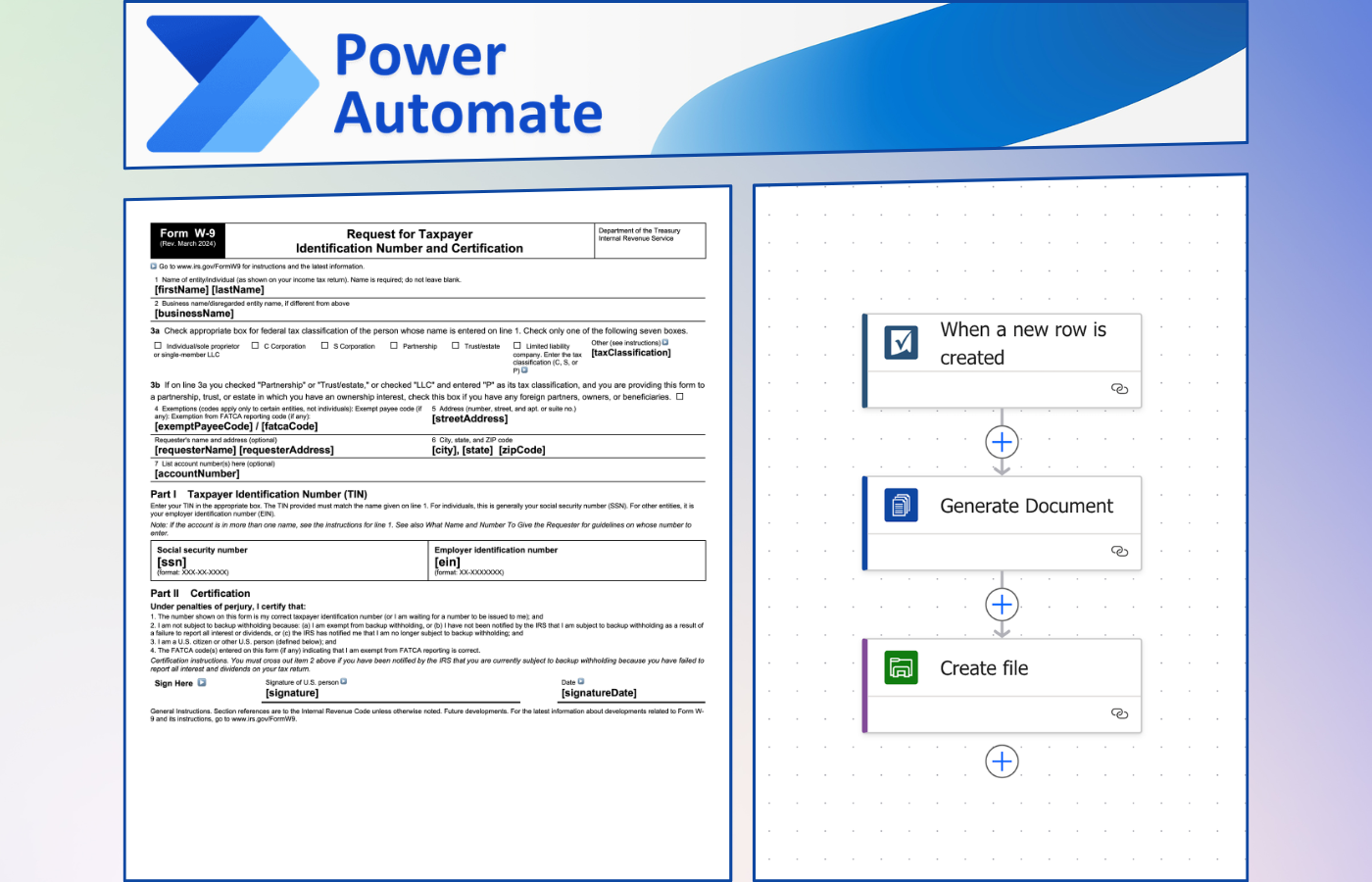
Word supports sending merged documents as individual email messages directly through Outlook, which is useful for bulk outreach or internal communications. DocuGenerate does not have built-in email delivery, but it can be combined with email tools through automation platforms like Zapier, Make, n8n, or Power Automate to achieve the same result as part of a larger workflow.
Conditions
Both tools support conditional content inside templates. Word provides Rules such as IF...THEN...ELSE, available under Mailings > Rules, which let you show or hide content based on field values. DocuGenerate uses a condition tag syntax written directly in the template body. With enhanced syntax enabled, DocuGenerate also supports logical expressions, comparisons, and arithmetic in conditions, which goes beyond the rule set available in Word.
Images
Word allows dynamic images in mail merge, but the images must be stored locally on the machine running the merge and configured through field codes, which makes the setup difficult to reproduce or automate. DocuGenerate supports images referenced by URL or Base64, which works reliably in cloud-based workflows where images are hosted externally. You can also control image dimensions directly in the merge tag using the size filter, making layout control straightforward without touching the document structure.
QR Codes and Barcodes
Word supports barcodes and QR codes via the MergeBarCode and DisplayBarcode field codes, though the syntax is not straightforward and visual customization options are limited. DocuGenerate has a dedicated QR code and barcode syntax that converts any field value into a QR code or barcode with configurable dimensions, colors, and formatting directly from the merge tag.
Append PDF
Word does not natively support appending additional PDF content to a merged output file. DocuGenerate lets you append a static PDF file at the end of each generated document, which is useful for contracts that need to include standard terms and conditions, legal notices, or fixed annexes as part of every output.
Conclusion
For teams that work entirely within the Microsoft 365 desktop environment and need to produce merged documents without involving any external systems, Word’s built-in mail merge covers the basics well. It handles field substitution, conditional rules, and direct email delivery through Outlook, all without requiring a separate tool.
DocuGenerate is a better fit when document generation needs to participate in a larger workflow. Its API makes it usable from automation platforms, back-end systems, and no-code tools, and features like PDF output, dynamic filenames, and PDF appending cover scenarios that Word mail merge cannot address natively. For teams already using Word to design templates, the transition is minimal because the templates have the same format.
The choice between the two comes down to where the generation step sits in your process. If it is a one-off task performed on a desktop, Word is already available and sufficient. If it is a recurring, automated step in a business workflow, a dedicated tool like DocuGenerate provides the flexibility to connect document generation to your existing systems.
Resources